console.log for the mind
low friction input
dense visualization
Personal Data Logging with Analytics
Guide/Trackers
04Trackers
A tracker is a note type you design: you name it and tell TriLog what kind of value it takes. From then on, TriLog knows how to ask for it, how to draw it, and how to summarize it.
01Defining a tracker
A tracker is defined by three things: a label (what it’s called), a short key (what you type), and a type (what kind of value it takes). Define them in App Menu→Extras→Trackers.
Once a tracker is defined, it’s just another prefix: t, then the key, then the value.
Say you’ve set up trackers for headaches, focus, brain fog, and movies:
Log a tracker with t + its key + a value. The chips below are keys you chose.
t hd 4 · t hd 2 · t hd 0
An Interval tracker. Log a severity when it starts, log again when it changes, and
0 when it’s over. The chart draws a band for as long as it lasted.
t ot 5
A Labeled Traffic Light with your own three states —
Distracted, Drifting, On Track.
t fog 3
A Number tracker set to Average — snapshot ratings through the day, averaged.
t mov 4 Inception | loved it
A Titled Rating — a title, a 1–5 rating, and an optional note.
Not everything worth logging is a symptom.
Trackers also come in two rhythms. The ones above are event trackers: logged any time, as often as it happens, each entry timestamped. There are also day trackers — one value per day, filled in at Day End (which we’ll cover later) — for things you judge about a whole day, like “how intentional was today?”
TriLog comes with a few trackers already set up. Three are active out of the box — Intentionality (a day tracker, rated once at Day End), On Track (the labeled traffic light above), and Optimism (a 1–5 rating). Two more are seeded but switched off — Headache and Brain Fog — ready whenever you want them. Keep what fits, delete the rest, add your own.
02The type decides the input
Here’s where the design pays off. The entry is always a plain line, t key value. But
once TriLog knows a tracker’s type, the interface around that line can adapt to it:
Each type gets its own control when you log, and its own way of being drawn.
Rating
A slider or stars. Charted as an icon colored by the value, in a scheme you pick
(red→green, dark red→bright yellow, or black→white).
Number — Sum or Average
A number field. Sum adds a day’s entries up; Average averages them.
Select
A row of option buttons you define, each with an optional icon — Small / Medium / Large.
Interval
A severity slider plus a Stop button while an episode is open. Drawn as a band, not a dot.
Traffic Light · Labeled Traffic Light
Three colored buttons — with your own names for the states, if you want them.
Titled Rating
A title field, a rating, and a note — for anything you review.
Itemized List · Text
“Took the whole morning stack” in one tap, or a free-text value.
Day trackers add two more: Duration (switch it on, and it stays on across days until you switch it off — “on antibiotics”) and Checkbox (a plain yes or no for the day).
You never have to memorize a key. In the Add dialog, open More and pick the Tracker tab: tap a tracker’s chip, and the control for its type appears underneath.
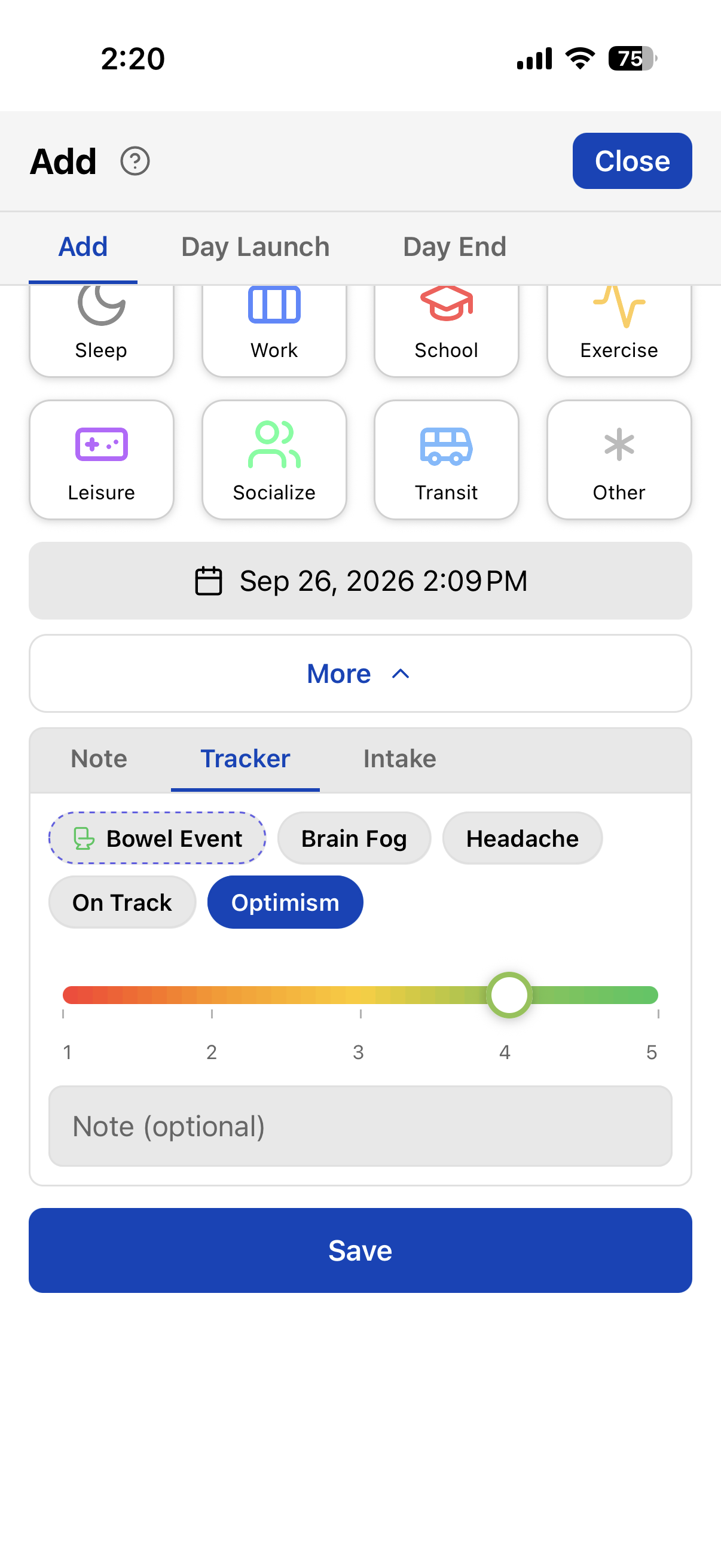
And if you do know the key, typing is still the fastest way in — and the only way that works without looking: “TriLog note, t hd 3.”
For the things you log many times a day, there’s one step less. Any tracker of a quick-record type — traffic light, rating, interval, duration, or checkbox — can be pinned to Quick Track: switch on Add to Quick Track in the tracker manager, and it becomes a one-tap button there. That’s why On Track is already waiting for you. Types that need typing, like Number and Text, stay out; they need a keyboard, not a tap.
03Seeing your trackers
A tracker doesn’t need a screen of its own. It’s a note, so it shows up where notes do. Filter the Notes view to a single tracker and switch to the chart:
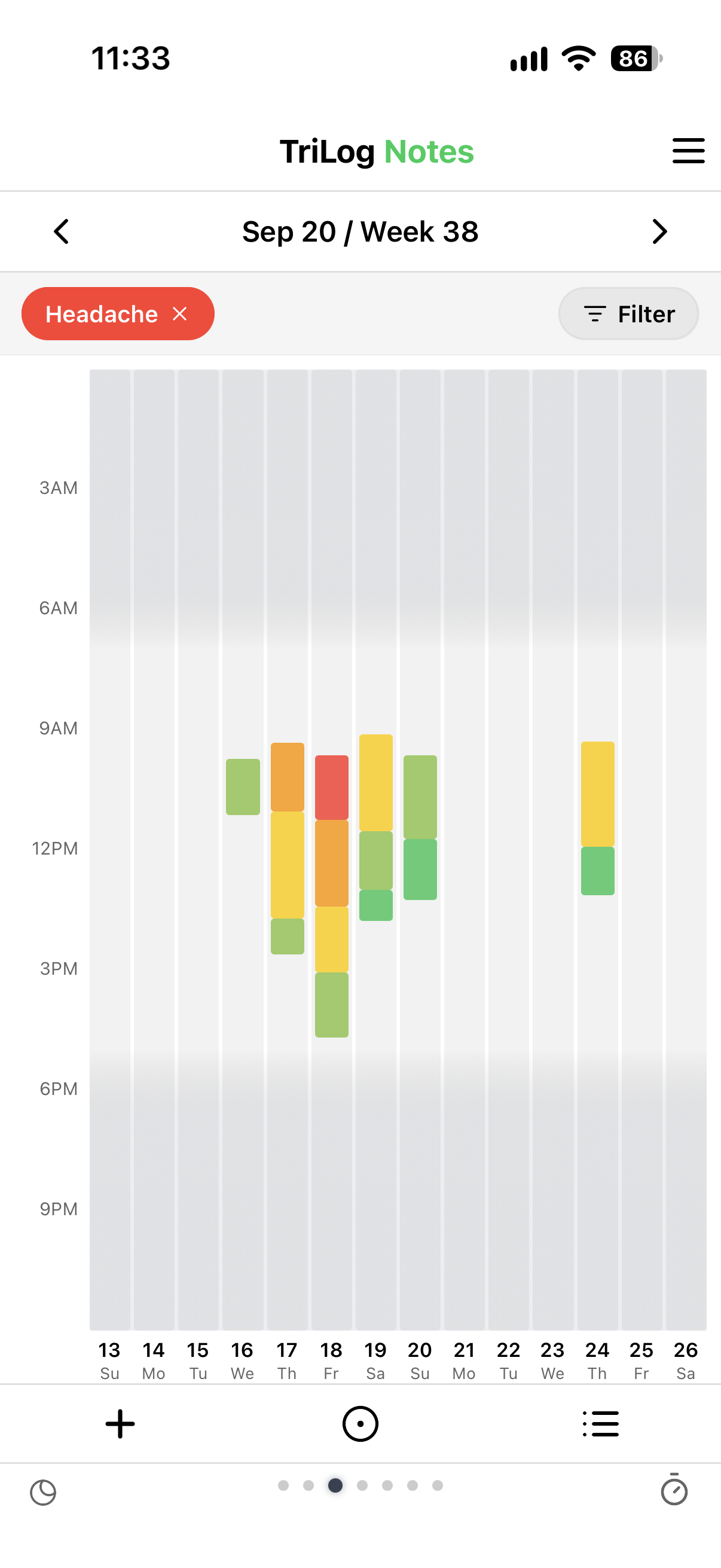
Ratings are colored by value. Intervals are drawn as bands for as long as each episode lasted. And, as promised, the long-press adapts: with a tracker filter on, long-pressing the chart pops up that tracker’s input, already set to the time you pressed.
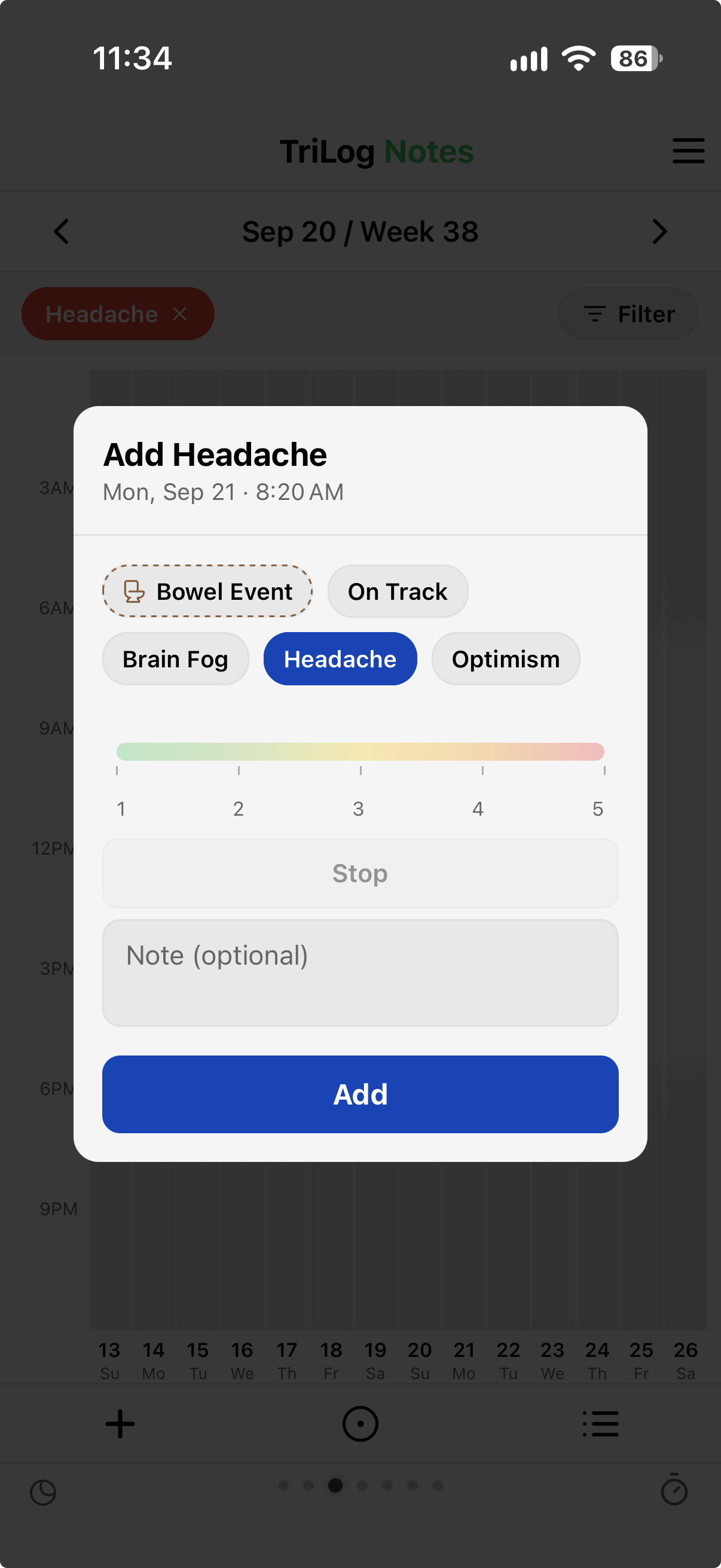
Trackers show up in a few other places, each suited to a different question:
Turning a tracker off doesn’t delete anything. Each entry is saved as an ordinary line in
your log, like t opt 4. The tracker itself is just the settings that tell TriLog what
opt means — its name, type, and colors. Switch a tracker off and it disappears from
the Add dialog, filters, and charts, but its entries stay in your log. Switch it back on and all of
them show up again.
→ BACK TO THE GUIDE — NEXT: INTAKE
· · ·
← Guide / Trackers
TriLog for iOS — on the App Store
Support · Privacy · Terms